- Section 1 -
Purchase, initial installation and upgrade
- Section 2 - Basic
information about TrainPlayer - importing, file
management, feature usage
- Section 3 - More
technical questions
I am having issues when downloading
the TrainPlayer Demo. What do I need to do to
successfully download your program?
I have noticed on the TP Forum that
some users have experienced difficulty installing this
upgrade when they are running AVG Antivirus Free
Edition. How do I successfully and safely install
TrainPlayer with AVG?
Why are downloads slow?
When I look at my Start menu in
Windows 7 / 8.1,/ Win 10, I see both TrainPlayer 6.0 and
TrainPlayer 6.1. Do I need both of them?
Will you be releasing a 3D version of
TrainPlayer?
Does TrainPlayer plan to update or
release a new version for MAC or iPad?
What operating systems are supported
with TrainPlayer? with 32 or 64 bit machines? Can I use my PayPal account to
purchase your products? I am having some issues trying to
complete my purchase using PayPal. Any ideas on
what the problem might be? How and when do I get my new
TrainPlayer user name and key code access? Why doesn't my license code work?
I only get an incomplete download of
the setup.exe file. What do I need to do to get
the complete download of TrainPlayer? With my Windows 8 laptop, the
download and initial install ran smoothly, but at the
end the program did not start as promised. What's going
on? Does my computer need to be connected
to the internet to use TrainPlayer? When should I uninstall an earlier
TrainPlayer version? How do I find out what license I'm
currently using and what upgrades are available to me?
I just upgraded to a new version, why
don't I see all the commands on the menu on my toolbar ?
I just installed the
latest version onto my new Windows 10 PC, but my current
license key is not being accepted. Why?
Q. I am having issues when
downloading the TrainPlayer Demo. What do I need
to do to successfully download your program?
A. Our
installer files are optimized and tested to work with
the most commonly used browsers - MS Internet Explorer,
Google Chrome, Netscape and Firefox. If you are
using something other than these, you may temporarily
want to use one of preferred browsers for your
TrainPlayer download. Our recommendation
is to:first Save
our Installer file to your hard drive [c:\user\user
name\My Downloads or to your C:\Users\user name\Desktop\
]. Then, scan it locally for viruses and then run / launch the
installer from there. If you choose to purchase
TrainPlayer, and we certainly hope that you do, then all
you would need to do is insert the user name and key
code access we will send you, via email, confirming your
purchase. There is NO need to re-install
TrainPlayer at that point.
Q. I have noticed on the
TP Forum that some users have experienced
difficulty installing this upgrade when they are running
AVG Antivirus Free Edition. How do I successfully and
safely install TrainPlayer with AVG?
A. Our TrainPlayer program is optimized and has been
tested to work best with Microsoft Internet Explorer or
Google Chrome and with the standard, most widely used
anti-virus software packages: MS Security Essentials,
Norton AV, McAfee, Kaspersky, NOD 32 and the paid
version of AVG. Our product is
virus free based on regular testing and scanning
from all of these anti-virus programs.
There have however been a few cases of AVG Free, Avast, and also Symantec Endpoint
Protection and others, identifying
part of our installation process as a threat. This has
been shown to be a false positive, but we would
recommend you first
scan the Setup61.exe file with your installed Anti-Virus
software to ensure it is safe.
You can then temporarily disable AVG before running the
installer by right clicking on the AVG system tray icon,
and selecting "Temporarily Disable AVG". As
soon as you have finished running the installer you
should reinstate your AVG protection by right clicking
the AVG System Tray icon and selecting "Enable AVG
protection".
Q. Why are downloads slow?
A.
Google Chrome browser users – you may
experience a time delay when downloading various
TrainPlayer files as Chrome verifies completion /
accuracy of the desired download.
As an alternative, you may want to
try either Microsoft Edge or the old stand-by – the
latest version of the Internet Explorer browser. Both of
these choices perform much more quickly
Q.
When
I look at my Start menu in Windows 7 / 8.1,
/10,
I see both
TrainPlayer 6.4 and TrainPlayer 6.5? Do I need
both of them?
A.
Typically your Start Menu will look
something
like this after
installing TrainPlayer 6.5.1
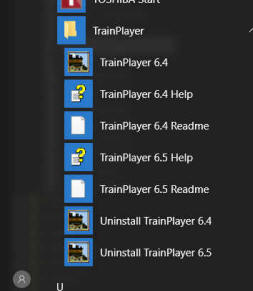
You can safely remove the extra “shortcuts” by doing a
right mouse click on each of TrainPlayer 6.4 Help,
TrainPlayer 6.4 and the TP6.4 Readme and selecting Delete
from the pop out menu.
Q. Will you be releasing a 3D
version of TrainPlayer?
A. We
are not planning a 3D version of our program. Our
goal has always been to deliver a high quality two
dimensional version of a typical model railroad where
you could plan and lay the track work, scenery, add
industries and towns and then operate a variety of
trains consisting of a range of rail car types and
engines from both the steam and diesel eras, all that
from the comfort of your "armchair". Q. Does TrainPlayer plan to update
or release a new version for MAC or iPad?
A. We
did at one time offer a MAC OS version of TrainPlayer
but it was withdrawn due to poor sales. At this time, we
do not plan to develop a new version for the MAC or
iPad. Q. What operating system is
supported with TrainPlayer? with 32 or 64 bit
machines?
A.
TrainPlayer runs on Windows 7, 8 and 8.1, and Windows 10.
TrainPlayer will run on Vista and XP but our support for
that OS is now limited. TrainPlayer will run on
both 32 and 64 bit computers. TrainPlayer requires a
minimum memory (256MB), but more RAM and DDR RAM is
better -- the more memory you have, the closer you can
zoom in on a large layout. Also, more memory
and/or a dedicated video graphics card in your PC will
also improve overall performance.
TrainPlayer is no
longer available for the MAC OS Q. Can I use my PayPal account to
purchase your products?
A. As
of July 1st, 2012 we now support PayPal on our web store
along with Visa and Master Card. If you prefer other
options, you can order by sending a
check or money order in the mail to TrainPlayer Software, 4200 Arcadian
Drive, Castro Valley, CA 94546. Q. I am having some issues trying
to complete my purchase using PayPal. Any ideas on
what the problem might be?
A. Our
web site is optimized to work with Microsoft's latest
version of Internet Explorer browser and Google Chrome.
You may experience some issues with PayPal and Firefox
version 17.01 and perhaps other browsers.. In those cases,
we ask that you use, temporarily, Internet Explorer or Chrome to
complete your PayPal purchase transaction. Q. How and when do I get my new
TrainPlayer username and key code access?
A.
Generally, our support team tries to get you an order
confirmation email which will contain your TrainPlayer
user name, key code access and download instructions
within two (2) hours of receiving your order from our
shop site. Due to hours of operation and our need
to sleep occasionally, there may be a delay in the
overnight hours. We also ask that you check your
Junk Mail filters/folders as sometimes our reply will
end up there. If you have not received an email from us
within 6-8 hours of placing your original order, please
send an urgent email to
support@trainplayer.com .
Q. Why doesn't my license code
work? I enter it and get "the name/key you entered
does not appear to be valid."
A. With the release of TrainPlayer 6.5.0, we
introduced a new security / key code licensing system.
If you upgrade your version of TrainPlayer to the latest
version AND you're using a computer with TrainPlayer
already installed on it, then your old license key will
automatically be changed to the newest version. If
you are installing TrainPlayer 6.5 + onto a NEW PC which
has never had TrainPlayer on it, please send an
email to
support@trainplayer.com and we will send you a new
key code access to use.
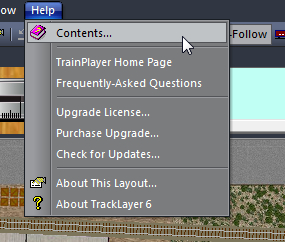
Once you receive the new license key but are not
prompted to enter it, use HELP\ Upgrade License
where you will see this menu.
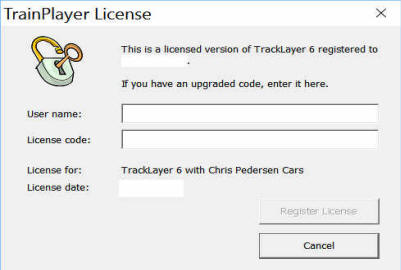
Use the Copy / Paste approach to place your new
information into these boxes and then Click OK to save
it.
The Enter Key dialog may have a name
in the box which differs from the one provided with your
license. Be sure to use the one which came with
the license you are entering. Q. I only get an incomplete
download of the setup.exe file. What do I need to
do to get the complete download of TrainPlayer?
A. Our
TrainPlayer program is optimized to work best with
Microsoft Internet Explorer or Google Chrome and with
the standard anti-virus software packages: MS Security
Essentials, Norton,
McAfee, Kaspersky, NOD 32 and the paid version of AVG.
If you are using a different internet browser / virus
package combination, you may need to temporarily turn
off your virus protection for the download to complete.
In those situations, always scan the TrainPlayer
installer file before running it. Q. With my Windows 8
/ 10 laptop, the
download and initial install ran smoothly, but at the
end the program did not start as promised. What's going
on?
A. With
TrainPlayer closed, go into the Registry editor via -
START\Run\Regedit which brings up the various keys used
by various software programs. Go to the Registry
Editor Menu bar Edit\Find and type in "TrainPlayer".
You will need to take a look at this registry value:
HKEY_CURRENT_USER\Software\TrainPlayer\TrainPlayer\Settings\Data
Directory6 which should contain a path to your app data
folder, like this: -
C:\Users\Jim\AppData\Roaming\TrainPlayer
And there should be a folder full of
data there. If not, you will need to add that path
information to your TP AppData files manually. Q. Does my computer need to be
connected to the Internet to enjoy TrainPlayer?
A. No. You will have access to all of your own layouts and car
types that are on your computer. However, with an active
Internet connection, you will be able to immediately
access any of our web based content for layouts, car
types, scenery and sounds via our various web choosers.
You would also have a connection to the web based
TrainPlayer and TrackLayer User Manual and Guide and to
the Frequently Asked Questions information. Q. When should I uninstall an
earlier version?
A. You
do NOT need to uninstall your current version before
running a more recent installer. The installer file will
overwrite the core program files located under
C:\Program Files (x86)\TrainPlayer but does not
over-write exisitng files located in your
\AppData\Roaming\TrainPlayer location. To be
100% safe, go to \AppData\Roaming\TrainPlayer and
rename the folder to \TrainPlayer_old. Once the
installer has finished you can merge your two
TrainPlayer AppData folders or merely delete the newest
AppData folder and rename your old TrainPlayer folder by
removing the _old from the name.
We suggest following the same method [renaming your
\AppData\Roaming\TrainPlayer] when using the Microsoft
Add / Delete programs to remove earlier versions fo
TrainPlayer from your hard drive.
Q. How do I find out which license
I'm currently using and what upgrades are available to
me?
A. Go
to your main menu bar and select Help \ Purchase
Upgrade. TrainPlayer will identify for you which
upgrades are available and their cost. This Help page
will also link you to our secure shop site, should you
wish to purchase that upgrade. Q I just upgraded to a new
version, why don't I see all the commands on the menu?
My toolbar buttons are fouled up.
A. When
you upgrade without running an installer, sometimes you
need to reset your menus and toolbars as follows: Go to Choose Tools
\ Customize. On the
Toolbars tab, click Reset All. On the Menus tab, click
Reset.
Do this for each menu in each drop-down
list. Click OK to dismiss the dialog. Toolbars and
menus will now be up to date. This does not apply to
most users. If you run the installer, it takes
care of this reset.
Q I just installed the latest version onto
my new Windows 10 PC, but my current license key is not
being accepted. Why?
A.
When we upgraded TrainPlayer recently to version 6.5 we
changed our internal security and key code systems. If
you were installing TrainPlayer 6.5 on the computer
where you originally installed it, then the change to
the new license / key code would have happened
automatically for you.
For all holders of at least a TrainPlayer 6.0
license, to receive your new user name and key code,
please send an email request to
support@trainplayer.com .
I bought the web download version of
TrainPlayer, where do I find a detailed User Manual
/Guide? Where do I locate my TrainPlayer
Files on my PC?
Where do I locate my various Sound files used in
TrainPlayer? Is there a way to customize my
toolbars to have my most frequently used features appear
on the main toolbars? Are there some typical Keyboard
shortcut commands that I can create? How do I share my finished layout
with other users at TrainPlayer? Why do I get a "Operation Timed Out"
message when I am downloading a car collection / layout? Why does the train jump the track in
some places? Why doesn't the turntable stop
rotating when it comes to a connecting track? How do I zoom in on the action? How do I download a range of Layouts
from the Chooser menu? How do I search your WEB for a
specific layout? Why can't I get these cars to
uncouple? How do I turn my TP sounds on? Is there a Switching / Operating plan
for TrainPlayer?
Does TrainPlayer let me import any
layout designs from other design programs like AnyRail?
How do I import my AnyRail file
into TrainPlayer?
I am using AnyRail for track laying
and design but when I import my file to TrainPlayer, the
resolution looks fuzzy. How can I improve the look
of my plan?
Q. I bought the web download
version of TrainPlayer, where do I find a detailed User
Manual / Guide?
A. Use
the Help command on the Main Menu bar in the program.
Or see the top of this page for links to download our manual in
PDF format.
Q. Where do I locate my
TrainPlayer Files?
A.
Inside Windows Explorer, TrainPlayer files should be in
two locations: C:\Program Files\TrainPlayer
or C:\Program Files (x86) for the TrainPlayer core program and
C:\Users\<Your Name>\Application
Data\Roaming\TrainPlayer for all of TrainPlayer's
application data files By Microsoft reasoning, only the
program should be in Program Files. All layouts, car
types, sounds, etc should be in C:\User\ YOUR
NAME\Application Data\Roaming\TrainPlayer\. Only if you want to
consolidate ALL your TrainPlayer files in ONE location,
would you need to move them to either one of the two
locations noted above. After consolidation, you
will need to rebuild your trees
inside the web chooser. To find where your layouts are,
inside Windows Explorer, do a "file search" as "*.rrw".
This will reveal where the layout files are and
typically the associated .jpg or (tpg) files as well. Microsoft
File Explorer
often treats these
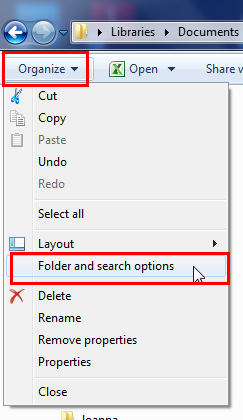
types of application files as "hidden". So, using
Windows.File Explorer or "My Computer", go to File \ Organize
and scroll down to the Folder and Search options.
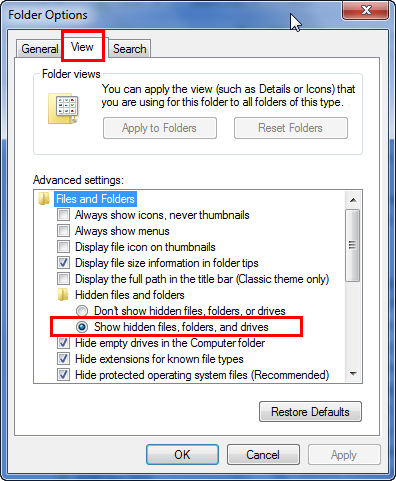
In the next menu go to the View tab. In that menu
scroll down and click on the "Hidden Files Folders" and
click on Show hidden Files and Folders to reveal all of
your applications files.
With Windows 10, go to File Explorer. Then go to the
View tab and on the right side locate and click on the
Hidden Files box to make all your files visible

Q:
Where do I locate my various Sound files used
in TrainPlayer?
A. With
the arrival of TrainPlayer 7.1, you can now easily
locate all of our Sound Library choices under the main
menu -
View/ Windows/ Sound
Chooser
You can also find the Sound/Layout library under the Station menu.
Here’s what you do: :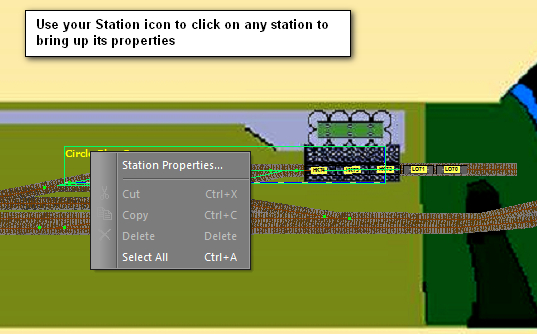
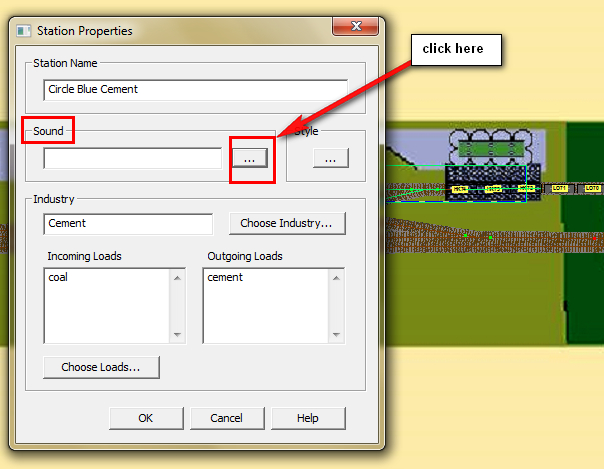
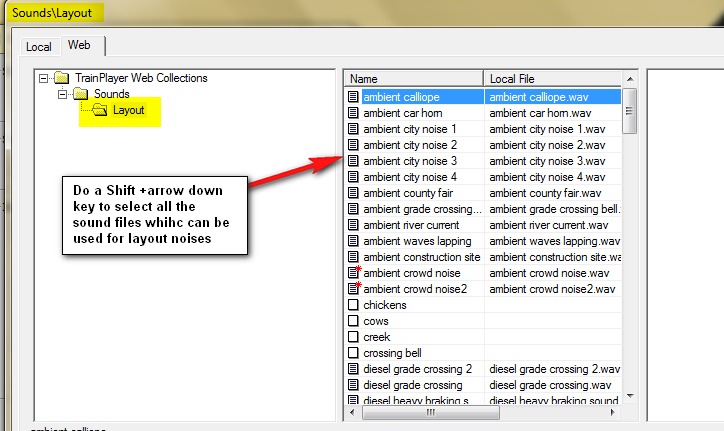
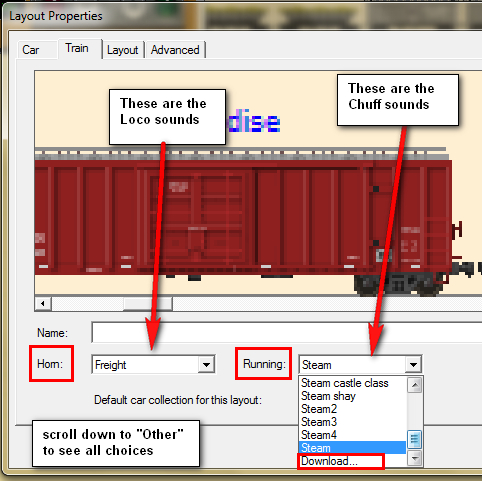
Also, from the Layout Properties menu, you select
the Train tab and
first Horn, then Running to get all the other sounds
needed to customize your individual engines.
Q. Is there a way to customize my
toolbars to have my most frequently used features appear
on the main toolbar?
A. Sure
thing! Go to View\Toolbars\Customize. In
that menu, on the Command tab, click on each subject
and scroll through the various available commands.
For new commands that you want to add, click on it with
the cursor and drag it to a suitable spot on any
existing toolbar. The most commonly added commands
are: Auto Follow, Check Track, and Preferences. To
remove any icons or text labels from an existing
toolbar, while using View\Toolbars\Customize, click on
the desired icon to be removed and drag it to the
centre of your screen. To rearrange the order of
your toolbars, just click on the far left corner of any
toolbar with the large Track tool cursor, hold and drag
the toolbar to your desired location. You can
place toolbars at the screen top, bottom or on either
side. IMPORTANT: once you have finished
customizing your screen and toolbars, you must Close
TrainPlayer to save your new settings Q. Are there some typical Keyboard
shortcut commands that I can create?
A. Yes.
Go into Tools\Customize\Keyboard and under the pertinent
category select what you want to use frequently.
These are the most common:
- Control> L/R for direction
- Control> U/D for speed
- Control> Space for Panic stop
(overrides deceleration)
- Alt> L/R to move left/right in
the current consist, placing the uncoupler
indicator
- Alt> Down to uncouple and change
direction -- as in spotting a car
- Alt> Up to uncouple and keep
going -- uncoupling on the fly
- Space Bar to throw upcoming
switch.
- Control T to toggle TP Ops window
visibility
Q. How do I share my finished
layout with other users at TrainPlayer?
A. We
welcome any submissions of your work either from hand
drawn layouts or using the Scenery Toolkit. You can
access the "Publish" feature from the File \ Publish
menu. In the next pop out menu, TrainPlayer identifies
which cars and resources are needed to run your layout
and there is a handy descriptive box for you to insert
your name and to provide the "story" of your layout.
When you have provided this information, press Okay and
TrainPlayer prompts you for a location to Save your
layout. A handy way to quickly locate these "shared"
files is to create a new folder on your Desktop and call
it "TP Share". When prompted to Save your "published"
version, just navigate to your computer desktop and
click on your TP Share folder. Then you send the files
to us at support@trainplayer.com and we will take care
of the rest. If you're having issues, then
send us an email at
support@trainplayer.com and
please include the following details - the
Windows operating
system you're using, your browser, any download manager
if applicable and a brief description of what error
messages you're receiving and / or the steps you are
taking during your download. Q. Why do I get a
"Operation Timed Out"
message when I am downloading a car collection / layout? A. When
you choose a car collection in the web chooser, before
it can show you the images it needs to download the
entire collection into the Cartypes_DL folder in your
system temp directory. Then if you click Install, it
copies them into your regular Cartypes location. If you
are seeing this "Operation Timed Out" alert, then inside
your Web Cartypes Chooser, at the top of the directory
tree, do a right mouse click on Cartypes. This
will bring up a submenu. From that submenu, select
"Clear Download Cache"
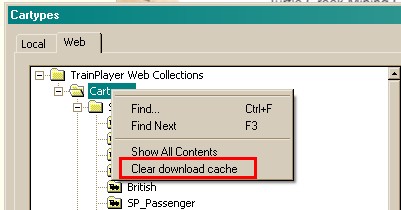
This procedure should eliminate that
problem. You can also use this same technique to
remove "old images" from your web Scenery chooser as
well. Q. Why does the train jump the
track in some places? Sometimes it doesn't move
where the tracks do, or splits up at a junction, or does
something else odd.
A.
There may be some bugs in your track work. If you
encounter one on one of our layouts, please report it. You can fix this
yourself, if you have TrackLayer.
When designing your own layout and
running trains over it, a good recommended practice is
to check your track frequently. To set this up
automatically, select Tools \ Options from the main menu
bar. Then in the pop up window - Preferences , use the
left mouse button to "Check Track while Drawing".
Another good habit to get into while designing your
layout is to Save your work frequently. You
can do this by going to File \ Preferences and from the
General tab, select "Auto Save" and set the timers to
something like "every 3 or 5 minutes". Then if you
do have a TP crash, when you re-open the program, just
go to File\ Restore Back up and the layout you were
working on should be on the list a layouts that were
Auto Saved.
Q. Why doesn't the turntable stop
rotating when it comes to a connecting track?
Sometimes it just keeps rotating.
A. This
can happen due to faulty track work. If you
encounter a faulty turntable on one of our
layouts, please report it. When designing you own layouts, if
you have activated the "Check Track" feature, it will
clearly identify where a mistake has occurred with a
brief explanation. You may find it easier to
delete the problem track and re-lay it again.
Q. The layout is so big, I find it
hard to see the details. How do I zoom in on the
action?
A.
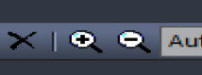
There are several ways you can zoom into a layout.
The most commonly used method is to go the "+ / -"
buttons on the main tool bar to slowly increase or
decrease the image size.
If you have Auto-Follow checked
in the layout context menu, the zoomed-in view follows
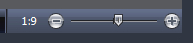
the train around. Since TrainPlayer 5.0 we
have provided a new zoom icon in the bottom right corner
of the screen which allows fast, proportional zooming
from a ratio of 100:1 all the up to 1:2
 Q. How do I
quickly download a range of
Layouts from the Chooser menu?
A. With
the Layout chooser open, Use Shift + Select together
to grab groups of files. Also you can use Ctl+select to
pick specific items, rather than a range.
Furthermore you can use Show All Contents and grab a
whole lot at once Q. How do I search your WEB for a
specific layout?
A. You
can search by right-clicking a folder in your Layout chooser
tree and picking "Find". Then type in a portion of a
filename, and it will go to the first hit. Use Find Next
to go to the next choice. Q. Why can't I get these cars to
uncouple? The tool is dimmed for no apparent
reason.
A.
There are reasons you might not be able to uncouple,
having to do with physics and common sense. You
can't uncouple if the train is backing up, unless you're
uncoupling a car which sits ahead of the engine, because
if you did, the next movement of the train would cause
it to re-couple. Also, to couple you must be going at
a slow speed. The default coupling speed is 15
MPH which you can change this in the Preferences \
Operations \ Coupling
dialog. Also, you are prevented from
uncoupling when cars sit atop a junction point (usually
at the frog of a switch). If the uncouple button
is dim, try moving your train a little forward or backward. Q. How do I turn my TP sounds on?
A.
First off, inside TrainPlayer, open any layout and
go into your View menu and Select "Running Sounds".
Then select any engine on your layout and start it. If
you hear sounds, then all is good. If you want
more sound options for your engine, then right click on
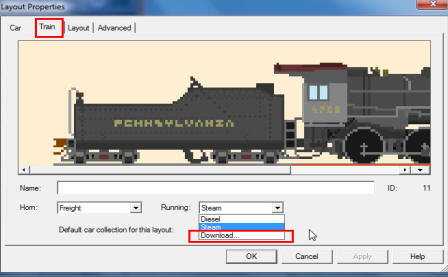
that engine again to bring up Layout Properties. Then select the Train
tab and scroll down the "Running" list until you
get to the Download Sound Library. Click on that
and you should get a much bigger selection of sounds for
your Sounds \ Chuff library to choose
from the next time you start TrainPlayer.
That particular download may take a few minutes to
complete.
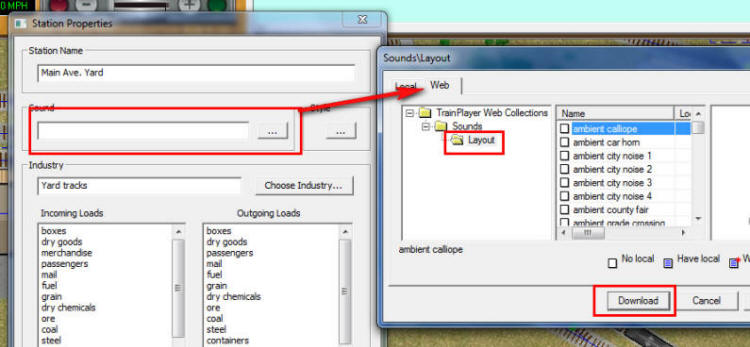
If you want sounds associated with your stations /
industries, then turn on the station from the Track
menu. Then click on any station to open the
Station properties dialog and to the Sound line.
Click on it to select an existing sound. If you
want more choices select the web tab, scroll
though and tag your choices and select "download more sounds"
Q. Is there a Switching /
Operating plan for TrainPlayer?
A. The Ops system in
TrainPlayer has evolved through several stages from
stations and simple tools for monitoring train moves in
and out of them. Car loads were introduced in
Version 2, then our first complete Ops system in
TrainPlayer 4.0.
In TrainPlayer 7 the evolution
took another large step. The extensive body of scripting
code from YardMaster was converted to c++ and
incorporated directly into the program. Older
facilities were scrapped -- old engine, color codes,
stations, ops windows -- and new ones introduced: Ops
Central, track labels, new ops engine built from the
ground up, based on logic developed over years.
The end result is Advanced Operations
(abbreviated to AO).
AO is a sophisticated,
customizable, easy-to-use system for conducting both
freight and passenger train operations on our
TrainPlayer simulated model railroads. The new AO system
recognizes that all layouts have different needs
regarding operations and incorporates the advantages of
the Tag on Car, Card Waybill, Card Order and Computer
Generated Switchlist methods of model railroad operation
to provide a satisfying operating experience on layouts
which may have many different design features.
Incorporating these different modes of operation into a
single system makes AO suitable for controlling
individual car movements between
staging and industries, running block trains to and from
major industries, routing blocks of cars in fast
freights to classification yards for subsequent
breakdown and handling by local trains, and the routing
of passenger trains from station to station by updating
the “Tag on Car” label automatically each time the
“Active Train” stops at an intermediate destination.
Q. Does TrainPlayer let me import
any layout designs from other design programs like AnyRail?
A.
Users of AnyRail can convert layouts for use in
TrainPlayer. The converter handles most standard track
elements: turnouts, curved turnouts, wyes, turntables,
crossings, hidden tracks, bridges, rerailers, slip
switches*. This conversion requires a TrackLayer
license.
Q. How do I import my
AnyRail file into TrainPlayer?
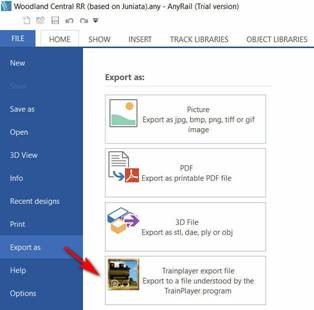
A. Inside AnyRail, open your layout and then
select from the AnyRail Main Menu - File/Export
As and choose TrainPlayer, as shown at left:
This process converts your .ANY file into an XML
file which TrainPlayer can read and it also makes a copy
of your layout image. Both the image file and the XML
conversion file are needed AFTER you convert your AR
plan to TrainPlayer. So you may want to save both files
on a NEW folder on your PC’s desktop.
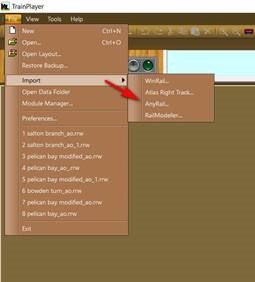
To open your layout in TrainPlayer, start our program
and select – File / Import and locate
and select your Layout.xml file in your AnyRail folder
OR in that New folder on your PC desktop (shown above
right).
Then, once the conversion is complete, you will see
your layout in TrainPlayer and you can add rail cars and
engines to that plan. If you are a licensed TrainPlayer
user, you would then Save your newly converted file
which will appear as <layout name>.rrw.
Q. I am using AnyRail for track
laying and design but when I import my file to
TrainPlayer, the resolution looks fuzzy. How can I
improve the look of my plan?
A. Both
TrainPlayer and AnyRail work hard to keep each other
aware of various updates to their respective programs to
ensure easy export / import of files. In this case, to
ensure a good quality import file for TrainPlayer, you
need to make sure that inside AnyRail, you go to View
Scale and choose a size which is suitable to display
your layout properly. For small layouts in the range of
4 feet X 8 feet, that scale might be set at 1:5.
For larger, room sized or club type layouts .you may
want to try a scale of 1:8 or 1:10. Next Save your
file in AnyRail. Then Export the file to TrainPlayer xml
format. Inside TrainPlayer, go to
File\Import\AnyRail and our program will convert that
file into TrainPlayer formats. If you're not satisfied with the
resolution, you can always go back into AnyRail and
change your View Scale settings accordingly. With the
enhanced Zoom capabilities added recently to
TrainPlayer, our program can handle image sizes up to
about 10 Mbs.without too much trouble. Above
that size, you may experience PC performance issues
depending upon your PC hardware configuration.
This is a problem that I have had
with multi-section layouts before. Suddenly the rolling
materiel gets stuck in cyberspace, somewhere between the
two layouts. What's happening and how do I resolve it? How do I link together several
layouts to make my own railroad empire? How do I fix this error message
- "Can't find Default Cars"? How can we change the rail spacing to
simulate Narrow Gauge track work? How do I get rid of the blank layout
1 from my opening screen? How do I clear my list of Recent
layouts in TrainPlayer? How do I access the Registry Editor
to delete any corrupted settings in TP? How do I make my preferred car
collection the Default for a specific layout?
Can I connect 2 displays/monitors to
a computer and use TrainPlayer across both?
Q. This is a problem that I have
had with multi-section layouts before. Suddenly the
rolling materiel gets stuck in cyberspace, somewhere
between the two layouts. What's happening and how do I
resolve it?
A. Cars
getting stuck in space is a consequence of the way
"linked layouts" work. When the rolling stock are
jumping across layouts, there is a copy of the train on
both layouts, sitting hidden at the jump-off or jump-on
spot until the train is ready to become visible. If
something interrupts this process, those cars can still
be sitting there, ready to cause problems in the future. Also there is a more obvious problem.
After you jump a train from layout A to layout B, if you
were to save either layout to a file, it would save the
train where it then sits. So let's say you start in A,
jump to B, then save the file and quit the program. Next
time you bring up A and jump it to B, you'll find your
saved copy of the train on B. The best advice is to get rid of any
phantom cars and trains you find or come across. Since
you can not see them, this is not easy, but check the
Train menu. The last resort is to edit the xml or RRW
file to remove them by force. If this is the case, then
drop us a line at
support@trainplayer.com Q. How do I link together several
layouts to make one large Empire?
A. Please
refer to the TrainPlayer User Manual for detailed
instructions on how to set up "Links". Here are
some key points to remember:
- Links can ONLY be made from
one "stub-ended siding" to another. You can have as many
links between any two or more layouts as you want, so
long as they are stub to stub type connections.
- Each stub ended siding will support only ONE
link and cannot be re-used for any others. The Link
ID must be the same for both sides of the linked
connection.
- The best recommended
practice is to have both of the layouts to be linked,
open at the same time. Designate your link
point(s), save each file, then test each link by running
a train through the link(s) in each direction. If you
encounter problems, first go to the main tool bar,
Tools, select Check Track. The pop up dialog box
will often indicate where the problem is located.
- Presently you
cannot generate OPS or switch lists from inside
TrainPlayer to include industries spread over 2 or
more linked layouts. However, you can, as many of
our users do, generate a switch list, save it in Excel
format or
some other program and then modify it manually to cover
your entire linked railroad empire.
If your problem persists, send us a note along with your
*.RRW file and we will try to assist you
Q How do I fix this error
message - "Can't find Default Cars"?
A. All
of the TrainPlayer data files are located here in
Windows Explorer:
C:\Users\username\AppData\Roaming\TrainPlayer\.
At the top of that directory tree,
you will find listed among the few files, one called
"choosers6.xml". This file keeps note of where the
program locates various types of files. It may
likely have been carried over even after a couple of
re-installations. With TrainPlayer closed, please
locate and DELETE the choosers6.xml file .
TrainPlayer will rebuild it when you next start it up.
Next just start TrainPlayer and see if you can get into
the program. If this does NOT resolve your
issue, then send us details on your computer set up -
Windows version, TrainPlayer version, and what
anti-virus you may be running, in an email to support@trainplayer.com. Q. How can we change the rail
spacing to simulate Narrow Gauge track work?
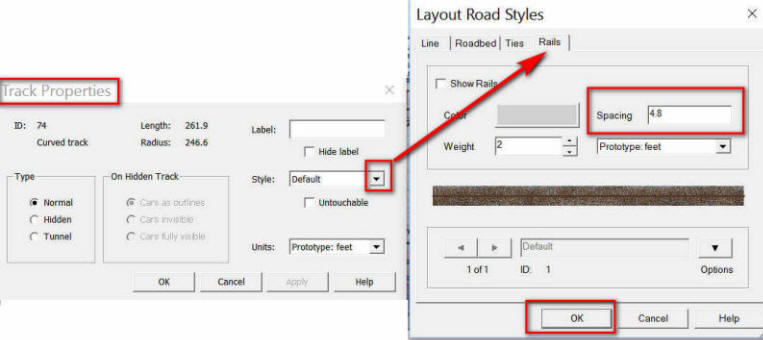
A. With
TrainPlayer 6.5, do a right click on any track segment
to Open the Track Properties menu. In that menu, click
on the drop down arrow for the Default Track settings,
to open the Road Styles menu. Click on the Rails tab and
set the properties to Prototype feet. Then enter
your desired narrow gauge width. Finally press OK
on that menu to lock in your choice
Q. How do I get rid of the blank
layout 1 from my opening screen?
A. You
can use Snapshot Windows to get rid of the blank layout.
Set up your opening window with the layout you want, not
the default blank, then use the Window\Snapshot window
feature. Now, close TP and restart. Assuming your
File \ Preferences are set to "show last layout on open.",
you should see your choice going forward. Q. How do I clear my list of
Recent layouts in TrainPlayer?
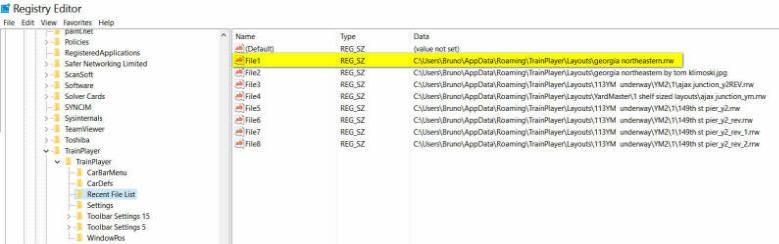
A. With
TrainPlayer closed, go into the Registry editor via -
START\Run\Regedit which brings up the various keys used
by various software programs. Go to the Registry
Editor Menu bar Edit\Find and type in "TrainPlayer".
The correct key location should come up on the 2nd or
3rd "Find Next" and the correct key looks like this:
HKEY_CURRENT_USER\Software\TrainPlayer\TrainPlayer\Recent
File List.
Click on File 1 to select the text and delete it.
TrainPlayer will re-build it when it opens again. Close
your Registry editor and run TrainPlayer.
Repeat this process for the other entries on your Recent
File List to clear them all.
 Q. How do I access the Registry
Editor to delete any corrupted settings in TP?
A. If,
for example, you made some customizations to your
menu tool bar and your Windows 7 / 8 / 10 keeps
crashing, then the best thing is to delete the registry
key folder:
HKEY_CURRENT_USER\Software\TrainPlayer\TrainPlayer\Toolbar
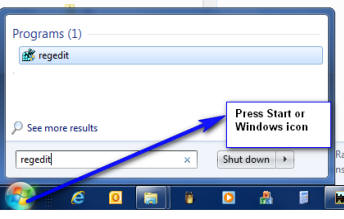
Settings 5, or 15 or whatever number is assigned. To do this: in the Start search box,
type regedit and choose regedit.exe.
Navigate to the above key [TP toolbar settings].
Select the folder, press Delete, confirm that you know
what you're doing, then close Regedit and try re-starting
TP.
This deletion will reset all your
toolbars and keyboard to vanilla and you will be now
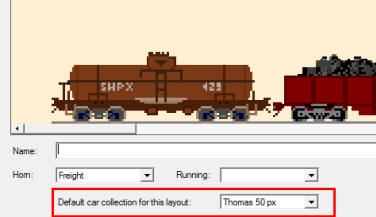
able to customize it to your preferred settings. Q. How do I make my preferred car
collection the Default for a specific layout?
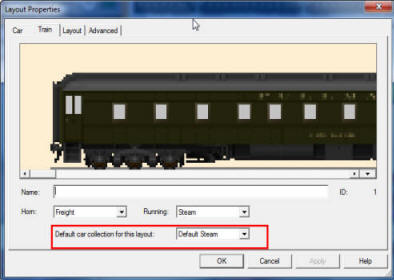
A. With
TrainPlayer 6, you can now attach any car collection to
any layout as its "default" collection. Simply open a
layout, do a right click somewhere on it, to open a menu. Scroll down to
Layout Properties. In the next menu, select the Train
tab and go to the "Default car collection for this
layout" and scroll down to the car chooser. In that
chooser, select whichever folder you want as the
Defaults car set. Save and close that window.
Now any time you add a car type for that layout, TP selects one that
matches from your choice of the Defaults set.
Q. Can I connect 2 displays /
monitors to a computer and use TrainPlayer across both?
A. The
answer is dependent upon your PC hardware. If you have a
desktop computer with a dedicated graphics card, it often comes with multiple ports
" usually VGA and HDMI.
HDMI is preferred choice since it will carry sound as well as
picture. Windows 7 and Windows 8 / 8.1 will
recognize the second screen. Inside your computer's
Control Panel \ display options, you can customize the setting to suit
yourself. For example you can "undock" the Train Window
and have it stretch across both screens to view really
long trains. Or, you can have your switch list and
schedule appear on one display while the other features
the layout itself.
|







 Resources